Sunday, 6 December 2015

SAP NOTES

SAP NOTES

T-Code - SNote

                       SAP maintains a knowledge base of problems and resolutions which are accessed from marketplace. www.service.sap/notes  SAP provides resolutions in the form of a note which is a number.  Note can be searched on number [if we know] or we can search with the problem code, error number etc.,

Note provides info. Regarding the problem, as follows:

       1) Problem      
       2) Pre-requisites.         
       3)Cause of the problem.
       4) Solution, Corrections, attachments and note may redirect one or more number of notes.

Notes are of 2 types:

1) Informative note:     Which consists of details to solve the problem.
2) Corrective note: This provides changes to the data directory elements or repository objects.

If there is a repository changes i.e., program code change can be done using SNOTE.  If there are any changes in data dictionary elements or customizing (Keying entries) to provides entries manually in tables which are detailed in attachments.

è To change repository objects we need ACCESS KEY
è While correcting the program SSCR key note required.  SAP software change request.

Applying Snote:

1)     Go to SNOTE.
2)     Load the NOTE, when we load the note status will be known.
3)     Implement the NOTE, while implementing the note status is in process.
After NOTE is applied it is completed. Once the implementation is completed
Before going live R/3 system needs to be tested for its optimal runtime.

Any Doubts Please Watch and like : https://youtu.be/vT8y72p6v2M


OSS Note - Online Service System

OSS Note:

OSS means Online Service System - online SAP support notes. 
OSS notes are available online for solving critical problems in SAP system. We may use the already existing notes or may add our own queries. In order to apply any OSS note, company authorization is required and must be assigned an OSS ID and password.

OSS id is a SAP service logon which is needed for connecting to SAP marketplace and is related to company’s agreement with SAP and assigned to company’s installation numbers.

OSS id helps to:
- Create SAP systems under selected installation numbers - this allows you to request licenses and 
upgrade keys for the system 

- Register developers for SAP systems (developer key)

for Ex we  provide access to SAP Consultant in Q50-900 through OSS Message 104524/2015

1)       Open the OSS message with the message no. (as provided above 104524) from SAP Marketplace with the following link
https://websmp110.sap-ag.de/support
         
2)       Go to “Report a Product Error” tab.

3)       Go to “Search Message” option.

4)       Here provide the message number as shown: 104524

5)       Click on the Search button after which a link appears

6)       Once the link is clicked, click on “Maintain Access Data” button

7)       A screen for System Explorer appears Q50 Test System

8)       Here click on the system for which OSS ids are to be created. As per example taken, click on Q11 (Test system) which gives in turn the Logon data for Q50 system. Here note the expiration date for the OSS Ids as provided below. Here the expiration dates for two OSS ids are still valid, hence those ids cannot be provided to the user. If the IDs are not valid you can reuse them. Also please check in the message if anyone had already updated any id before. If you find any then please try to use that id only. But make sure you follow all the below process before using the id.
“Expiration date is within the Validity period” means Expiration date for the OSS id is less than or equal to present date.
In this scenario, it is required to find other OSS ids from the system which can be reused 
with expiration date = 9 days + ( sy-datum – 1), where sy-datum is present date.

9)       Once finding of proper OSS id is completed, Clicking on above Modify button will give a screen where details for client, user id, and password and expiration date are required. 

10)     So now in order to find OSS ids, logon to SAP GUI.
Now Go to SU01 in respective CUA. Here system is Q50, go to SA1 and give OSSQ50000* and press F4 (search help) and remove 900 from No. of Hits. 

11)     The first two ids cannot be chosen as the expiration date is within the validity period.
Hence select the third id and go to edit mode and check the Valid through date in LOGON tab. If the Valid through date has already expired, then that id can be reused.

12)     Go to Address tab.
Here this is previous data which is to be modified and reused.

13)     Put the OSS id in Last name and provide User full name followed by OSS message no and year.

14)     Go to LOGON tab again and change the Valid though date = 9 days + (present date – 1). Here the present date is 12/03/2015. Hence valid through date is 20/03/2015.

15)     Now go to Roles tab and verify if any Security / Basis / Debug / Configurator roles are assigned permanently. If any, then change the date from 31/12/9999 to any expired date as shown.

16)     Now logon to the child system individually and with given password as Welc0me1
Reset the new password to Spring01 and select the required system and cont

17)     Now in this screen, write the OSS message with OSS id details and system for which OSS id has been reused and click on “Send Message” button.


Regarding PRD OSS Ids

1. We must need ST Ticket and manager approval before providing OSS ID in production system. Requesting person can open ST Ticket and attach manager approval via email. If it is off hours, you still can give OSS ID providing requesting person will arrange for manager approval by next business days and attach it to ticket. You can send reminder email to verify next day

2. Once you have ST# Available, you can go to PA1 and find ANY available OSS ID for that system. You can identify OSS ID by naming convention

For example, OSSP50900-01 ID is for P50 900 System. If ID validity dates are expired, that means it is available to re-use. You need to update few things though like, requesting person name, OSS Message#, ST TICKET# . You can see these fields already mentioned for previous message. You can overwrite it for message you are working on it

3. Extend validity dates of OSS ID for 9 Business days (not including holidays) 

4. Remove old expired roles and assign new roles based on request. You can use general production end users roles/support team roles for same validity period . YOU CANNOT ASSIGN CUTOVER ROLES. If tcode is only available in FF ID roles, you can assign for max 48 hours

5. Go to child system and validate all changes you did in CUA is pushed there and roles updated. Reset password in child system. Try to login on your matching with OSS ID and initial password and change password to something like Welcome1234 or hello1234. Remember password you put. 

6. Go to OSS MESSAGE AREA and update OSS ID, PASSWORD, VALIDITY DATES in secure message area. Also put remarks in OSS Message and sent message back to SAP

7. Should we unlock (if it is locked) any of existing OSS id for reuse?

Yes. You should verify if validity dates of OSS ID already expired. If that's the  case, you can re-use ID by unlocking it and resetting password. We strongly suggest to re-use OSS ID rather than creating new one. We have around 6-7 OSS ID for each system which can be used repetitively.

8. What do we need to update in the star team ticket?

You can update ticket to inform requesting person that you have provide OSS ID and password details in secure message area. DO NOT PUT OSS ID PASSWORD IN starteam ticket. Also please do not email OSS ID password to Pepsico users. You should only save password in secure message area where SAP resources can check

9. What should be the final status of the ticket after providing the Oss id to the user?

We usually get OSS request as new issue or new special request. If it is new special request, you can put to special request assigned and assign back to requesting person. If it is new issue, you can just update ticket and assign back to requesting person. If no action required, he may close tickets

10. Also whom should we assign the ticket after we update the ticket?

You should put ticket back to requesting person unless it is specified in ticket whom to forward. You may check if OSS Connection is open or not. If OSS Connection is closed, you may forward ticket to SAP BASIS PRODUCTION team queue to open OSS Connection for 9 days or remind requesting person to follow up with BASIS team member to open OSS Connection. 
               
11. What roles to assign if not specified in ticket? 

You may ask to requesting person if he is available. If not and issue is urgent, you may copy all access of requesting person and put it in OSS ID. That could be starting point and SAP can request more access later if required for further analysis. 

12. Do we need approval to provide debug access (please advise the debug role also)?

Yes you need BASIS manager approval to provide debug access. Please see roles in OSS ID (OSSP70900-02) for example. If issue is urgent and manager is not available for example at midnight, you can provide access and strongly request user to collect manager approval by next business days. 

Important:

?        With recent changes, security team member will not have access to extend roles starting with ZPC-XXX*. We need to request FF ID if we need to assign these roles.
?        When you change validity date of role, also change valid from date


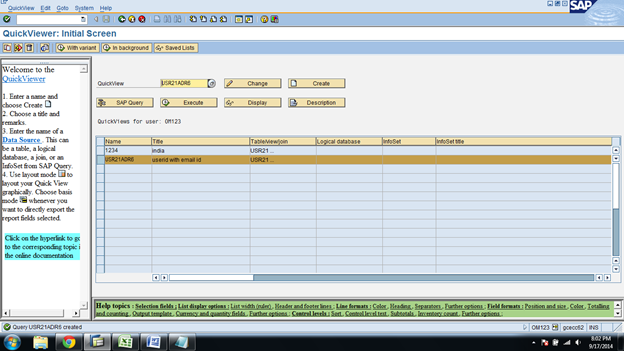
SQVI - Creating reports with the quick viewer

Creating reports with the quick viewer:

To access this tool, the path is SAP Menu --> Tools --> ABAP Workbench -- > Utilities -- > QuickViewer (SQVI)

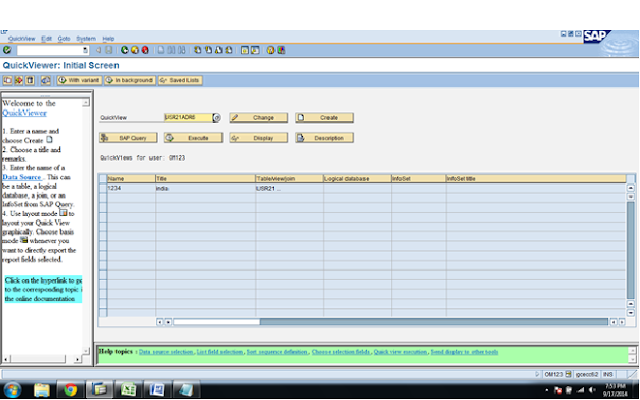
Go to tcode SQVI and specify desired quick viewer name and create.

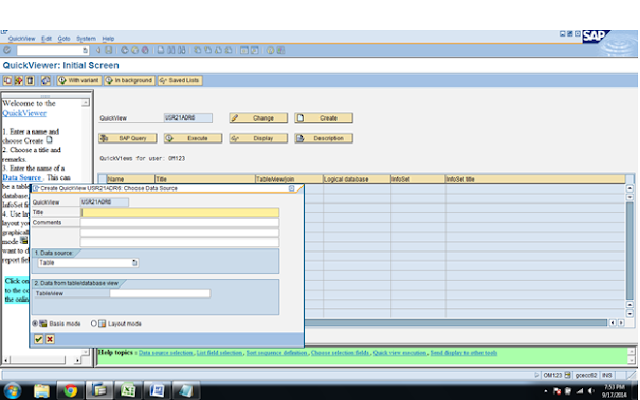
A popup will appear than select “table join” option in data source field and enter.

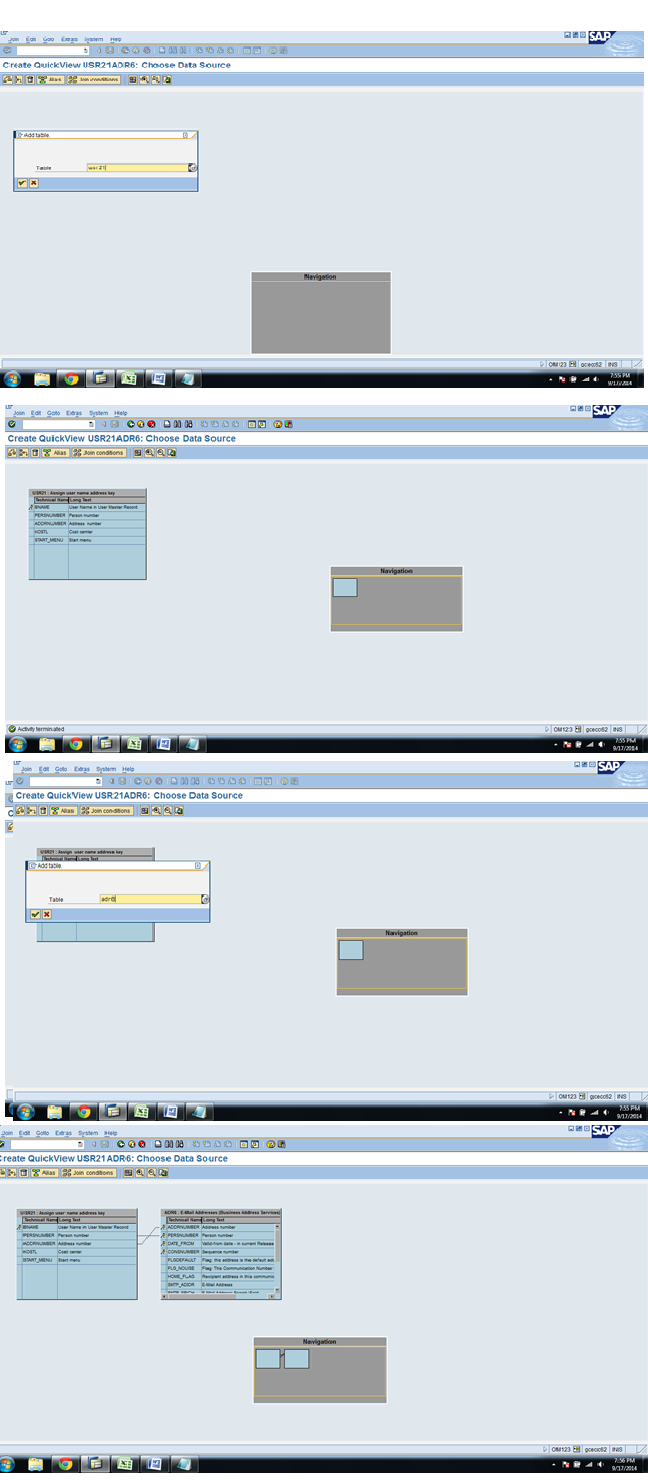
Go to menu bar edit -- > insert tables. Maintain table name and enter

If you want to insert a one more table follow the step 3.

Go back and select the field which you want in available fields.

finally save the record and execute.

you can change the report layout by using "layout mode" push button before saving the quickviewr.


STEP1:Goto SQVI


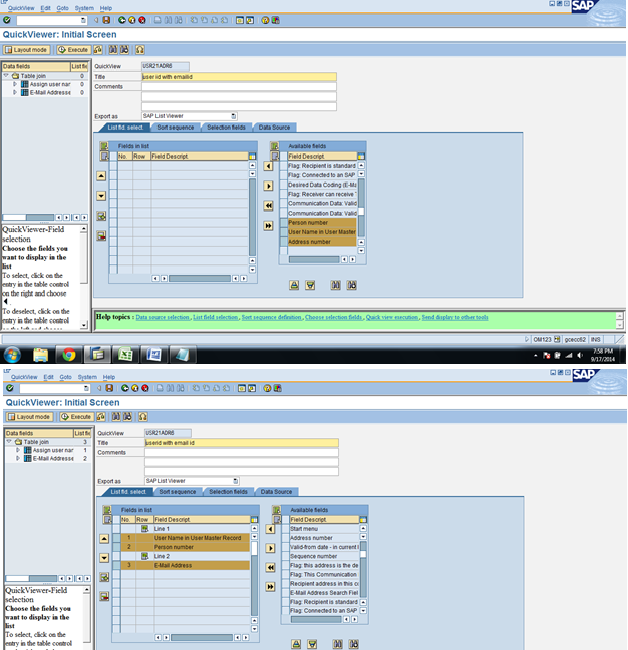
Step2:Give the QuickView Name  (Ex:Usr21Adr6  Its shows the relationship between UserID and Email Address)

Step3:Click the Create Button then we get popup ,In that popup we give the Title and select  the Data Source as Table Join with Basic Mode.

You can also choose “BASIS MODE” or “LAYOUT MODE”
Here I am Selecting Basis mode and select table join if more than two tables

Step4:Insert the Table Names as Usr21 and Adr6 .

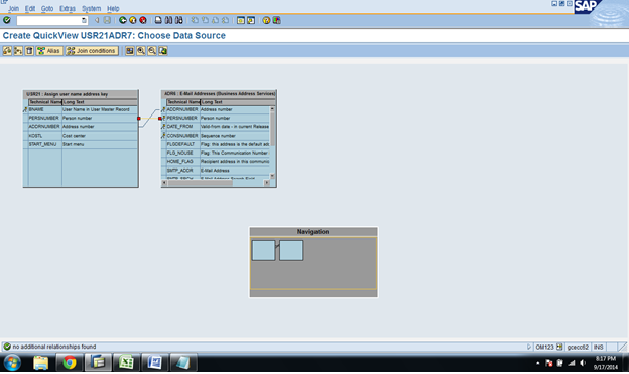
Check the Join Condition By click the Join Condition.

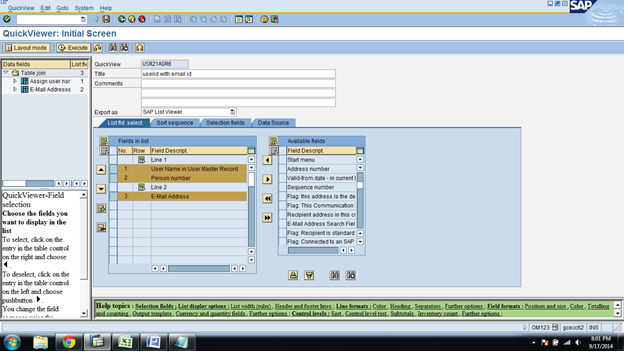
Step5:Then click the Back button and add the person number and user name in user master and email id from available field to fields in list.

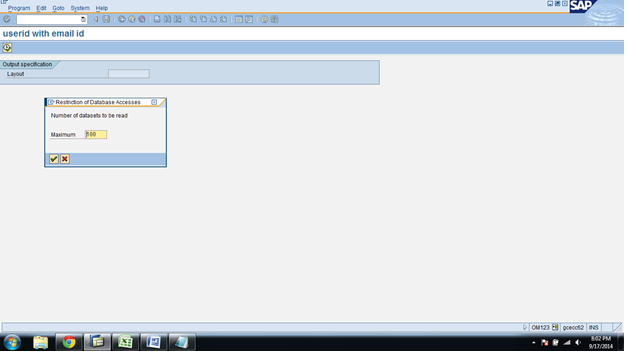
Step6:Click the Execute Button

Execute

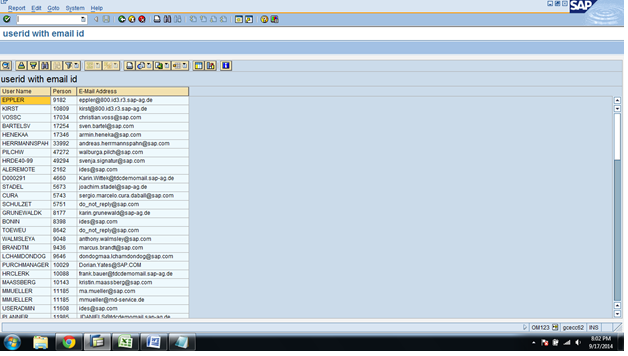
Step7:Here we can see the User name with Email Address .

Go to Back and Save.

Saturday, 5 December 2015

S_DATASET - Authorizations for accessing files from ABAP/4 programs


Definition
Object S_DATASET provides authorizations for accessing files from ABAP/4 programs.
You use this object to assign authorizations for accessing operating system files (with the ABAP/4 key word OPEN DATASET, READ DATASET, TRANSFER and DELETE). This key word can also be used to assign the authorization for using operating system commands as a file filter.
In ABAP/4 programs, you perform the authorization check with the function module AUTHORITY_CHECK_DATASET.
Defined fields
The object consists of the following fields:
·        PROGRAM ABAP/4 program name
Name of the ABAP/4 program that contains the access. You can restrict the file access to a few known access programs.
·        ACTVT Activity
Possible values:
·        33: Normal file read
·        34: Normal file write or deletion
·        A6: Read file with filter (operating system command)
·        A7: Write to a file with filter (operating system command)

·        FILENAME File name
Name of the operating system file. Here, you can restrict the accessible files.

Winshuttle Role in SAP Security

Addressing Security, Performance, and Usability Concerns in SAP® Security Requirements Using Winshuttle Transaction

Winshuttle - Is a Third Party tool.It extracting data from SAP to Excel.

Transaction Authorization Requirements

Transaction Authorization via SAP GUI:

Transaction cannot run a Transaction if you cannot run that Transaction in the SAP GUI. If you do not have access to a particular Transaction, please obtain authorization for it before you record or run that Transaction in Transaction.

Remote Function Calls (RFC) Authorization:

Transaction makes RFC calls to SAP. You must have this additional access assigned to you. In most cases, these authorizations are already assigned to you. The following objects with the indicated values should be in your SAP user profile for working with Transaction.

For the S_RFC Authorization Object:
• Field RFC_TYPE Value FUGR (function group)
• Field ACTVT Value 16 (execute) or *
• Field RFC_NAME

The following values are required for running shuttle files:
SYST, SRFC, SUSO, RFC1, RFCH, SBDC, ATSV, STTF, SDTX

The following additional values are required for recording shuttle files:
SBDR, SCAT, STTM, SDTX

Table Level Authorizations:
Transaction can get logs, extended comments, field descriptions, and messages during debug process. For this, the user must have access to few tables. Table level access is controlled by authorization object S_TABU_DIS. Transaction needs access to these tables: T100, TFDIR, DD03L, DD04L, TSTCT, D020T, and DD03M.

To enable this access, please setup the following authorization:
Authorization Object: S_TABU_DIS
Field Authorization Group (DICBERCLS) = SS, &NC&
Field Activity (ACTVT) = 03 (Display only)

GUI Scripting Authorizations:
In addition to RFC calls, Transaction also provides access to the SAP system using the SAP GUI Scripting mode. Users can check that they have the correct authorizations in SAP from within the Transaction UI.

Summary:

Loading data into and extracting data from your SAP system is a critical activity that requires the proper controls, security and workflows. In order to be adequately protected, it is best to use existing security profiles and controls. Additionally, Governance, Risk and Compliance (GRC) best practices require complete traceability of these activities.

Winshuttle Transaction Security Workflow:

In order to perform user-enabled data loading, it is critical to apply the proper controls, security, and workflows to ensure that SAP Transactional data is fully protected end-to-end. A good data governance best practice to follow is to ensure that any software that is integrated with SAP to perform data loads must be SAP-certified.

Tested by SAP, Winshuttle Transaction has received the “Powered by SAP NetWeaver” and “SAP Certified Integration” certifications. Transaction works natively with SAP security technology and uses standard SAP authorization profiles to restrict user access, preserving SAP security standards at all times. With Transaction, there are no “back doors”. Figure 2 demonstrates the security workflow that Transaction uses to log on to the SAP system and communicate with SAP via the RFC communication protocol to perform uploads and downloads.

1. When the Transaction user logs on, they are authenticated using their credentials from the SAP server as if they are logging on to the SAP server using SAP GUI.

2. The Transaction user requires RFC authorization in SAP to allow remote access to SAP functions. User RFC authorization is controlled by the SAP authorization object S_RFC. See the “Transaction Authorization Requirements” section below for more information.

3. The user’s SAP system credentials provide the authorization to run Transaction with a specific SAP Transaction. This ensures that the Transaction user can transfer data only to the SAP Transactions to which the user is authorized. For example, in order to create additional master records, the user must be authorized to run the MM01 Transaction. In addition, Winshuttle’s Central product enables SAP system administrators to establish fine grained control of usage for Transaction users. See the “Central” section below for more information.

4. Transaction reads data from one or several Excel files or Access tables, converts the data from its source format to the SAP target format, and performs an RFC CALL Transaction function in SAP. If the Transaction cannot be finished due to a lack of required data, data inconsistencies, or for any technical reason, SAP rolls back the Transaction in a way similar to a manual Transaction update.

5. When the CALL Transaction is completed, either a success or failure message is passed from SAP to Transaction. Transaction writes the messages returned by SAP for each CALL Transaction back into the Excel file or Access Table.

Any Doubts Please Watch and like : https://youtu.be/fHJpQ7k2Tgshttps://youtu.be/fHJpQ7k2Tgs